
What exactly is an SSL?
An SSL certificate is basically a small file that sits on your server and lets your website load over HTTPS instead of HTTP. In simple terms, it locks the connection between your website and the person visiting it, so nobody can read or change what passes between them.
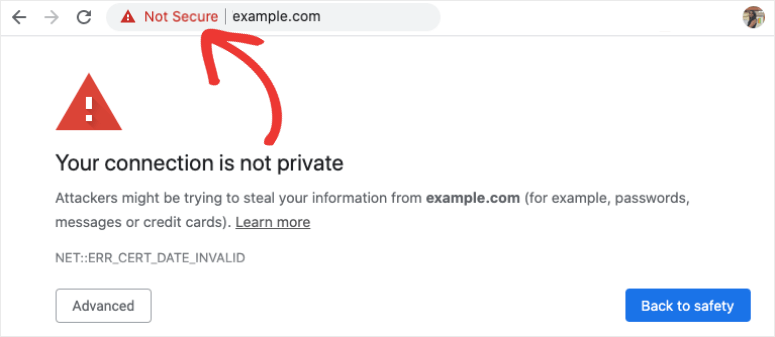
If your website doesn’t have one, browsers like Chrome show a “Not secure” warning next to your domain name. Visitors see it before they see anything else on your site, and it usually leads to most leaving before a single page even loads.
If your hosting comes with cPanel, adding an SSL is easy. You literally just click a button and it’s done. But if you’re running your own server without a control panel, there’s no button to click. You have to set it up yourself from the command line.
That sounds harder than it is. In this post, I’ll show you exactly how I did it for my own website, step by step, using a free certificate from Let’s Encrypt.
What you need before you start
Before you run any command, make sure you have these five things in place. If one is missing, the certificate will fail.
- A server you own (a VPS or a dedicated server). This guide is for servers without a control panel, so you need a VPS or dedicated server where you have full control. If you don’t have one yet, you can buy one from Hostinger or TK webhosts.
- A server with SSH access. You should be able to log in and run commands with sudo. In this post I’m using a Debian server, and the same commands work on Ubuntu.
- A web server that’s already running. I’m using Apache, and my website was already loading over http before I started. If your site doesn’t load at all yet, fix that first.
- A domain pointing to your server. The domain’s A record must point to your server’s IP address. Let’s Encrypt checks this before it gives you a certificate. If the domain isn’t pointing to the server, the process will fail.
- Ports 80 and 443 open. Port 80 is used to verify your domain, and port 443 is what HTTPS runs on. Most servers have them open by default, but if you set up a firewall, check them.
An easy way to check items 3 to 5 is to type your domain into a browser first. If your site loads (even with the “Not secure” warning), it means that your domain, web server and port 80 are working.
Step 1: Connect to your server from PowerShell
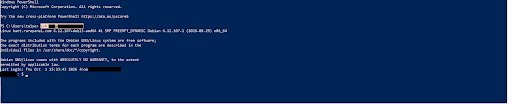
You don’t need to install anything to connect to your server if you’re on Windows 10 or 11. PowerShell already has an SSH client built in.
- Search for PowerShell in the Start menu and open it.
- Type this command and press Enter:
ssh username@your-server-ipReplace username with your server username and your-server-ip with your server’s IP address. Your hosting provider usually sends these to you.
If it’s your first time connecting, PowerShell will ask if you trust the server. Type yes and press Enter.
Enter your password when it asks. You won’t see anything as you type, not even dots. That’s normal, just type it and press Enter.
Step 2: Update your server and install Certbot
Certbot is the free tool that gets the SSL certificate from Let’s Encrypt and installs it for you. Before installing it, update your server’s package list so you get the latest version.
Run this first:
sudo apt updateWhen it finishes, install Certbot and its Apache plugin:
sudo apt install certbot python3-certbot-apache -yThe -y at the end just answers “yes” to any question the installer asks, so you don’t have to type it yourself.
The Apache plugin is what lets Certbot edit your Apache settings for you, so you don’t have to do it by hand. If you’re using Nginx, you’d install python3-certbot-nginx instead.
The installation prints a lot of text, so don’t worry if your screen fills up. Scroll to the bottom and look for a line that mentions certbot.timer. That’s the automatic renewal setup, and it means your certificate will renew itself later without you doing anything.

Step 3: Check your Apache virtual host
Certbot needs to know which website the certificate is for. It finds this in your Apache virtual host file, so check that it’s set up properly before you run it.
First, list the sites Apache is serving:
ls /etc/apache2/sites-enabled/You should see a file named after your site, like yourdomain.conf. Open it with:
cat /etc/apache2/sites-enabled/yourdomain.confLook for these lines:
<VirtualHost *:80>
    ServerName yourdomain.com
    ServerAlias www.yourdomain.com
    DocumentRoot /var/www/yourdomain
</VirtualHost>
What matters here:
ServerNamemust be your exact domain.ServerAliasshould be the www version of your domain. Without it, the certificate won’t cover www.<VirtualHost *:80>means the site is listening on port 80, which is where Certbot starts from.
If the ServerName is wrong or the file doesn’t exist, fix that first. Certbot can’t guess it for you.
NB: mine is tbtutors.ng, yours will be different.

Step 4: Check that your domain points to your server
Let’s Encrypt only gives a certificate to a domain that actually points to your server. So before you run Certbot, confirm your domain is pointing to the right IP address.
The tool for this is dig, but it doesn’t come installed on a fresh Debian server. If you type dig and see “command not found”, install it with:
sudo apt install dnsutils -yNow check what IP your domain points to:
dig +short yourdomain.comThen check your server’s own public IP:
curl -4 ifconfig.meBoth should show the same IP address. If they match, you’re good to go.
If dig shows nothing, don’t panic yet. Open your domain in a browser. If your website loads, the DNS is working, and you can also check it on a site like whatsmydns.net. If the site doesn’t load, go to wherever you manage your domain and add an A record pointing to your server’s IP, then wait a little for it to update before you continue.

Step 5: Run Certbot
This is the step that gets your certificate. Run this command, and replace the domain with yours:
sudo certbot --apache -d yourdomain.com -d www.yourdomain.comThe -d flag tells Certbot which domains the certificate is for. Add one for the main domain and one for the www version.
Certbot will then ask you a few questions:
- Email address. This is where Let’s Encrypt sends a warning if your certificate is about to expire and fails to renew. Use an email you check.
- Terms of Service. Type
Yand press Enter to agree. You can’t continue without it. - Share your email with the EFF (optional). You can type
Nif you don’t want their updates. - Redirect HTTP to HTTPS. If it asks, choose the redirect option, so anyone who opens the http version of your site is sent to the https version automatically.
After a few seconds, you’ll see a message saying the certificate was successfully deployed for both domains. It also shows the date the certificate expires. Mine expires on 23 December 2026, which is about 90 days, and Certbot renews it before then.

Step 6: Check that HTTPS is working
Certbot said the certificate was installed, but it’s worth checking for yourself.
- Open your site in a browser. Type
https://yourdomain.comin the address bar. You should see a padlock icon next to the domain, and the “Not secure” warning should be gone. Click the padlock to see the certificate details, including who issued it (Let’s Encrypt) and when it expires. - Check the www version too. Open
https://www.yourdomain.com. You asked for both in the Certbot command, so both should show the padlock. - Check the certificate from the server. Go back to your PowerShell window and run:
sudo certbot certificatesThis lists every certificate on your server, the domains it covers, and the expiry date. Mine shows tbtutors.ng and www.tbtutors.ng, valid until 23 December 2026.
- Check what happens on http. Open
http://yourdomain.com(without the s). If it jumps to https on its own, the redirect is working. If it stays on http, don’t worry, we’ll fix that in the next step.

Step 7: Force HTTPS and update WordPress
This step is only for WordPress sites. If your site isn’t on WordPress, you can skip to Step 8.
Even with the certificate installed, WordPress may still think your site lives at the http address. Update that so every page loads over https.
1. Change your site URLs.
- Log in to wp-admin and go to Settings > General.
- Change both WordPress Address (URL) and Site Address (URL) from
http://tohttps://. - Click Save Changes. You’ll be logged out, so log back in.
2. Make sure http goes to https. Open http://yourdomain.com in a browser. If it jumps to https, you’re done with this part. If it stays on http, install the free Really Simple SSL plugin, activate it, and click the button it shows to enable SSL. It adds the redirect for you.
3. Look out for mixed content. Sometimes a page loads over https but still pulls an image or script from an old http link. The browser then shows a warning or removes the padlock. Open your main pages (home, blog, contact) and check that the padlock is still there. Really Simple SSL fixes most of these for you. For the rest, edit the page and change the http:// link to https://.

Step 8: Test automatic renewal
Let’s Encrypt certificates only last 90 days. You don’t have to renew them by hand, because Certbot set up a timer when you installed it. It checks twice a day and renews the certificate when it’s close to expiring.
You can test this without changing your real certificate. Run:
sudo certbot renew --dry-runThis does a practice run of the renewal. At the end, you should see a message saying all simulated renewals succeeded. If you see that, your certificate will renew by itself when the time comes.
If you want to confirm the timer is running, use:
systemctl list-timers | grep certbotYou should see certbot.timer listed with the time of its next run.
That’s all for renewal. You don’t need to do anything else, but it’s a good idea to use an email address you check, since Let’s Encrypt sends a warning there if a renewal ever fails.

Common mistakes and how to fix them
These are the problems I ran into, plus a few others to watch for.
1. dig: command not found
dig doesn’t come installed on a fresh Debian server. Install it with sudo apt install dnsutils -y, then run the command again.
2. The output looks wrong or empty
When I pasted several commands at once, the results ran together and it looked like my domain had no DNS record. It didn’t. Paste and run one command at a time, so each result shows on its own line.
3. Certbot skips a question or you answer it too fast
Certbot asks for your email and for you to agree to the terms. If you hit Enter too quickly, it may skip the email. You can’t continue without agreeing to the terms, so type Y when asked. To add or change your email later, run sudo certbot update_account --email [email protected].
4. Certbot says it can’t verify your domain
This usually means your domain isn’t pointing to your server yet, or port 80 is blocked. Go back to Step 4 and make sure your domain points to your server’s IP. Then check that your firewall allows ports 80 and 443.
5. Certbot can’t find your site
This happens when there’s no virtual host with your domain as the ServerName. Go back to Step 3 and check your config file.
Common mistakes and how to fix them
These are the problems I ran into, plus a few others to watch for.
1. dig: command not found
dig doesn’t come installed on a fresh Debian server. Install it with sudo apt install dnsutils -y, then run the command again.
2. The output looks wrong or empty
When I pasted several commands at once, the results ran together and it looked like my domain had no DNS record. It didn’t. Paste and run one command at a time, so each result shows on its own line.
3. Certbot skips a question or you answer it too fast
Certbot asks for your email and for you to agree to the terms. If you hit Enter too quickly, it may skip the email. You can’t continue without agreeing to the terms, so type Y when asked. To add or change your email later, run sudo certbot update_account --email [email protected].
4. Certbot says it can’t verify your domain
This usually means your domain isn’t pointing to your server yet, or port 80 is blocked. Go back to Step 4 and make sure your domain points to your server’s IP. Then check that your firewall allows ports 80 and 443.
5. Certbot can’t find your site
This happens when there’s no virtual host with your domain as the ServerName. Go back to Step 3 and check your config file.
6. The padlock disappears on some pages
That’s mixed content, an old http:// link on the page. Check Step 7 for the fix.
Conclusion
That’s all it takes to add a free SSL to a server without cPanel. You connected to your server, installed Certbot, checked your Apache setup and domain, ran one command to get the certificate, and tested that it renews itself.
Your website now loads over HTTPS, the “Not secure” warning is gone, and you don’t have to touch the certificate again for about 90 days. After that, Certbot takes care of it.
To be sure everything is set up properly, run your domain through a free SSL checker like SSL Labs. It tests the certificate and tells you if anything is wrong.
If you got stuck at any point, check the common mistakes section above. And if you have a question, leave it in the comments.